Your signature is saved once and then applied to your estimates automatically. You draw it right on the Company Details page.
Open company details
Click Account in the top navigation, then choose Company. The Signature card sits alongside your company information.
Draw your signature
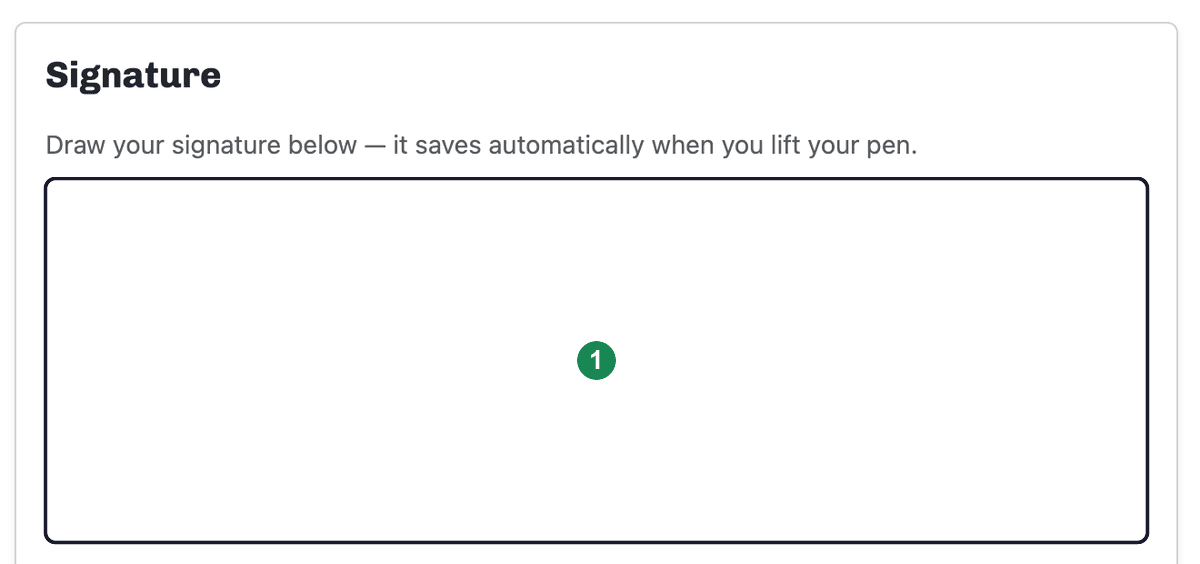
If you don't have a signature yet, you'll see a blank box with the prompt to draw below. Sign inside the box — use your finger on a touchscreen, or your mouse or trackpad on a computer. It saves automatically when you lift your pen, so there's no separate save step.
Your estimates sign themselves
Once a signature is on file, your estimates auto-sign with it — you don't have to sign each one by hand. Your saved signature is shown here, with a note confirming it auto-signs your estimates.
Replace your signature
To change a signature you've already saved, click Remove Signature and confirm. The drawing box comes back so you can sign again. Note that while no signature is on file, your estimates won't auto-sign until you draw a new one.