Every estimate has one change order, ready when you need it. Here's how to open it, adjust the work, and save.
Open the change order
Open the estimate, then click Change of Order in the action bar at the bottom of the page. The first time you open it, Estimation Builder creates the change order from the estimate's current line items, so you start from what was already quoted rather than a blank page.

Edit the details and line items
Click Edit to make changes:
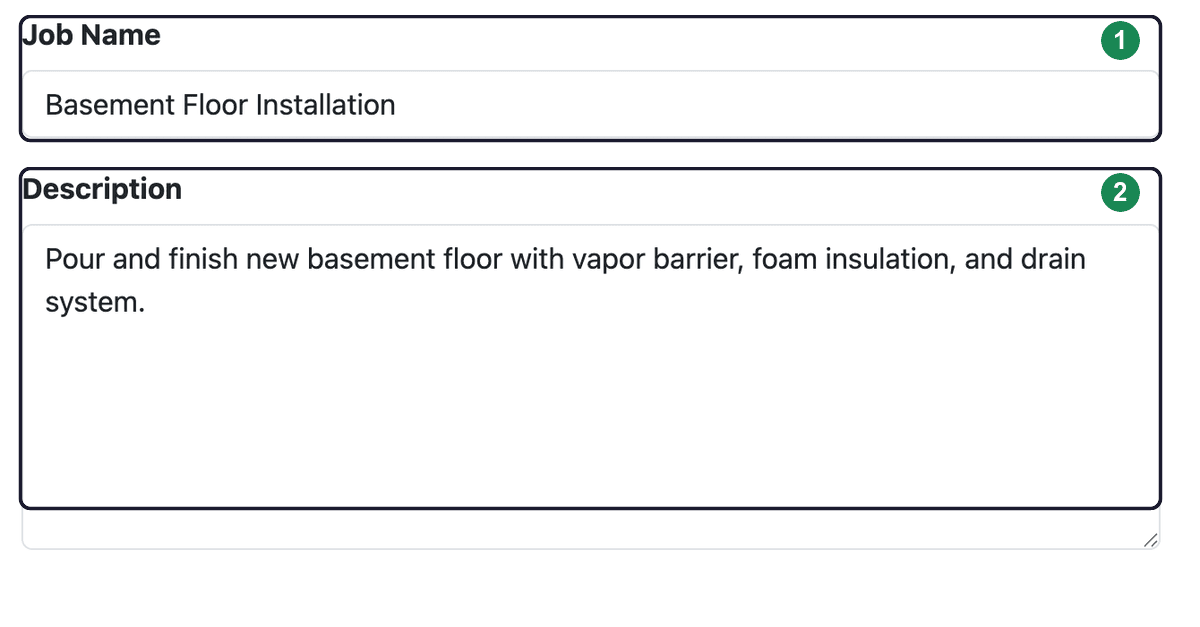
- Update the Job Name and Description as needed.
- Click Add Items to add line items, priced the same way as on an estimate — by square foot, cubic foot, quantity, flat rate, per foot, or per hour. The running Grand Total updates as you go. For the full walkthrough of the item editor, see Adding line items.
- On each existing line item, use Edit to change it or Remove to take it off.
Click Save Changes when you're done. (Cancel discards your edits and returns to the change order.)
Next: Send it to your customer — see Generating the change order PDF.