Have a list of the services or products you offer already in a spreadsheet? Save it as a CSV and upload it to fill your catalog in one go — then each item is ready to drop into an estimate.
Start the import
From the Items page, click Import CSV. The import page walks you through three steps.
Step 1 — One item per row
Your file needs just one column: the item name, with one item per row. There's no price or charge type to include — those are set per line item on each estimate, not in the catalog. Need a starting point? Click Download a starter spreadsheet for a ready-made template.
Step 2 — Save it as a CSV
A CSV ("comma-separated values") is just a plain version of your spreadsheet that any spreadsheet app can save. If you need a hand, the customer import guide has step-by-step instructions for Excel, Google Sheets, QuickBooks, and Apple Numbers — the same steps apply here.
Step 3 — Upload and confirm
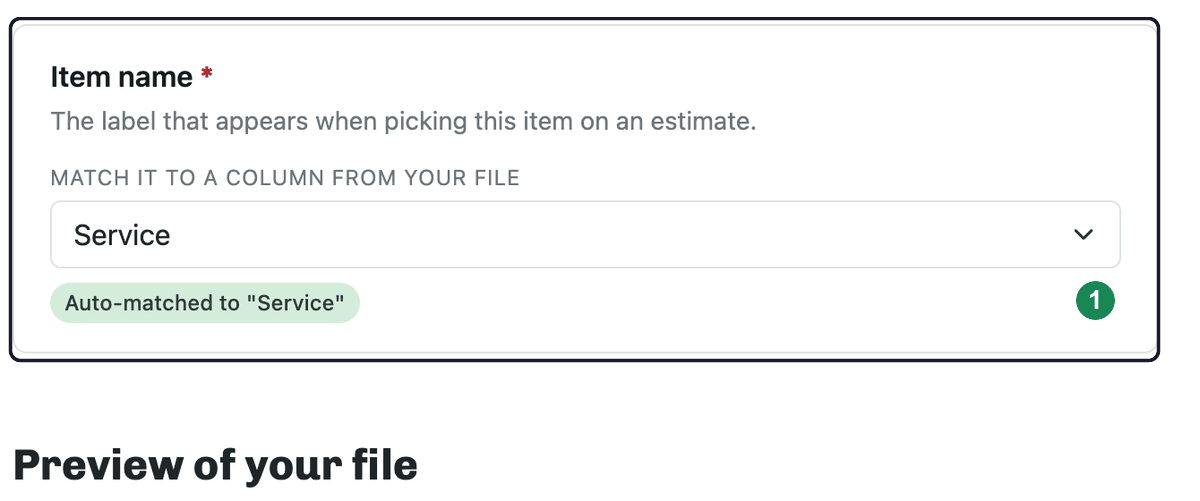
Choose your CSV file and click Continue. On the next screen, confirm which column holds the item names — we take a guess and show it as "Auto-matched," so usually you just check it and click Import. Up to 5,000 items (and 5 MB) can go in a single upload.
Review the results
The results page shows how many items were Imported, how many were Skipped, and any Row errors. Items already in your catalog are skipped automatically (matched by name, ignoring uppercase and lowercase), so re-uploading never creates duplicates. From here, click Manage your catalog to see your items.