As your customer pays, record each payment against the invoice. The balance due updates automatically, so the invoice always shows where things stand.
Open the payments window
Open the invoice (from the estimate, click Invoice), then click Payments in the action bar. The Add Customer Payments window lists any payments already recorded.
Record a payment
Type the amount in the Enter amount paid box and click Add Payment. The payment appears in the list, dated today, and the invoice's Total Paid and Total Due update right away. Record as many payments as you need — handy for a deposit up front and the balance on completion.
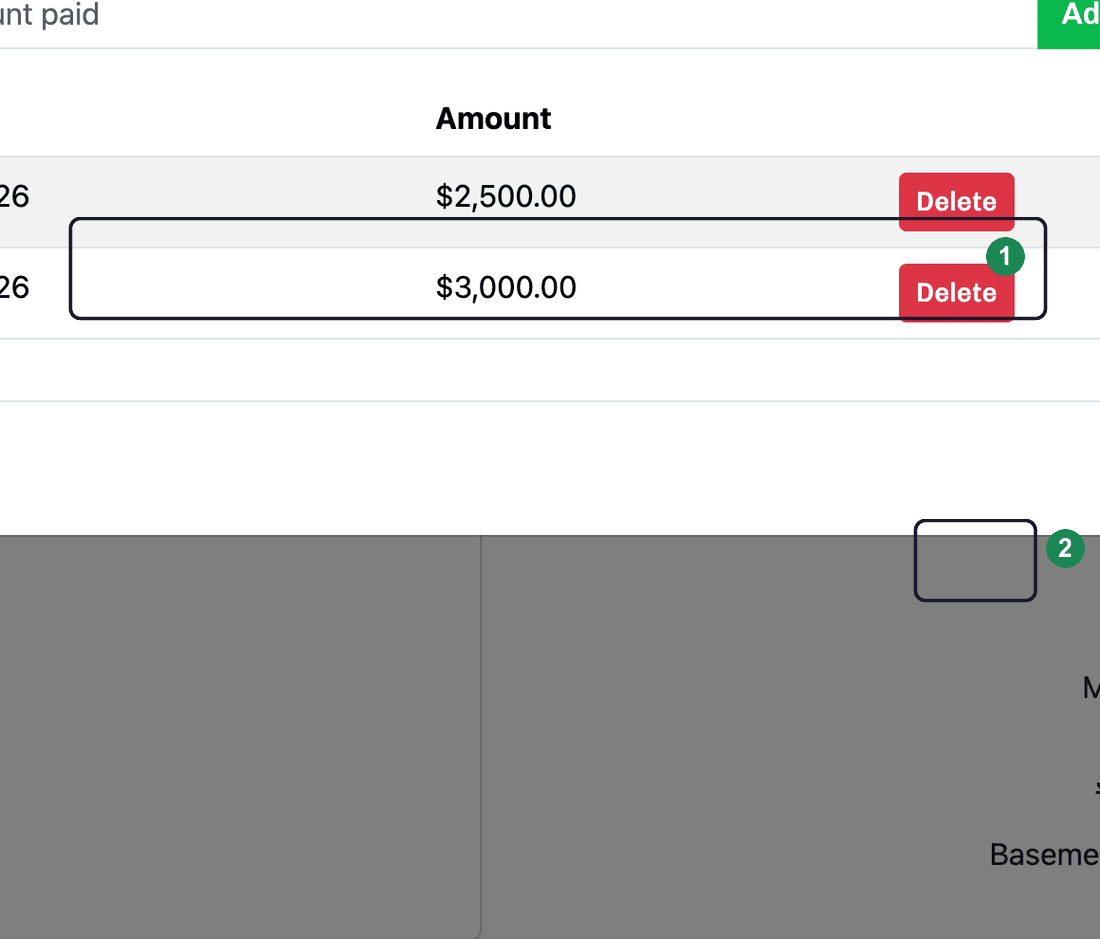
Delete a payment
Made a mistake? In the payments list, click Delete next to the payment to remove it. The totals adjust immediately.