Every estimate belongs to a customer, so your customer list is the foundation of your account. Here's how to add customers and keep their details current.
Open your customers
Click Customers from your dashboard. You'll see your customer list, with a search box to find anyone quickly once your list grows.
Add a customer
Click New customer. Fill in the details — only Name is required, and the rest (email, address, city, state, zip, phone) are optional but worth adding, since they appear on the documents you send.
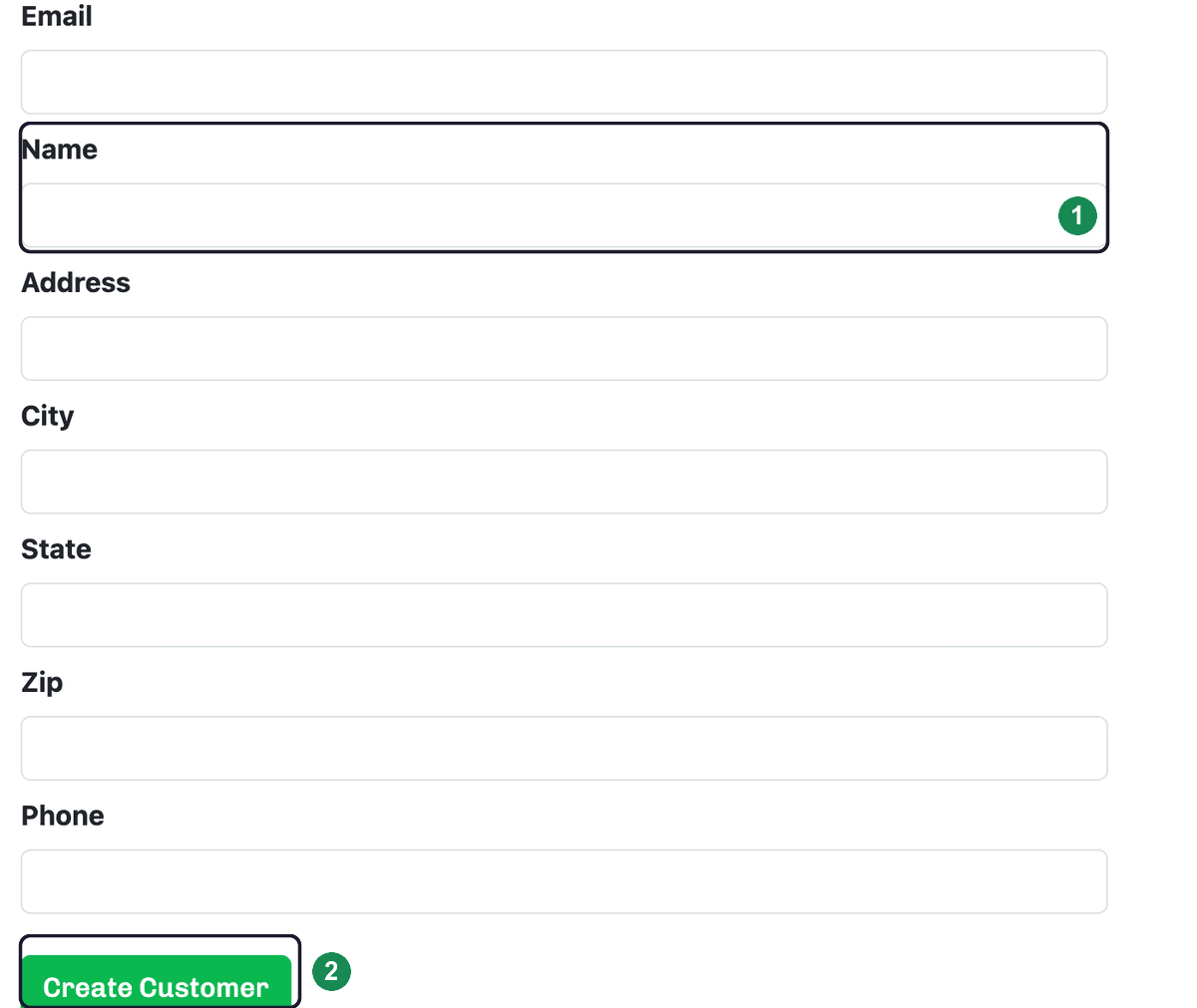
Click Create Customer. Estimation Builder saves the customer and takes you straight to a new estimate for them, so you can start quoting right away. (Not ready to quote yet? Just head back to Customers.)
Edit a customer
Click a customer's name in the list to open their page. Update any field, then click Update Customer to save. From here you can also jump to that customer's estimates and invoices — see A customer's estimates and invoices.